Confirming Your Role
When you're scheduled to fill roles in upcoming meetings, you can easily confirm your availability in TMClubSchedule. You have two convenient options to accept or decline your assigned roles:
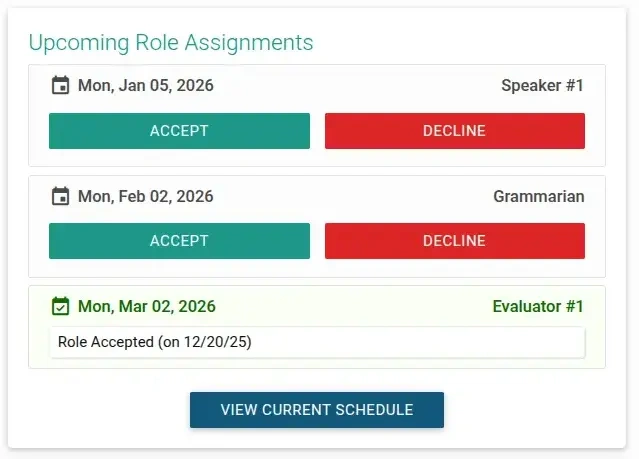
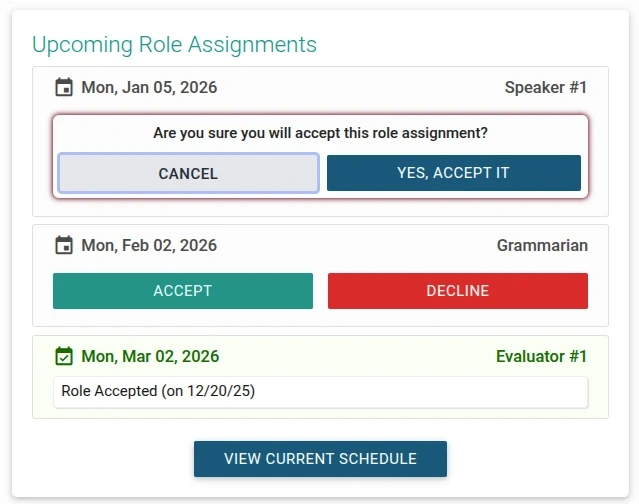
- Quick Confirm: Directly from your main member dashboard, locate the Upcoming Role Assignments widget and use the
ACCEPTorDECLINEbutton to quickly accept or decline your role assignments. - Schedule Page: Visit the schedule page to review the full club schedule, locate your assigned roles, and accept or decline them.
1. Accept or Decline Roles from your Main Dashboard
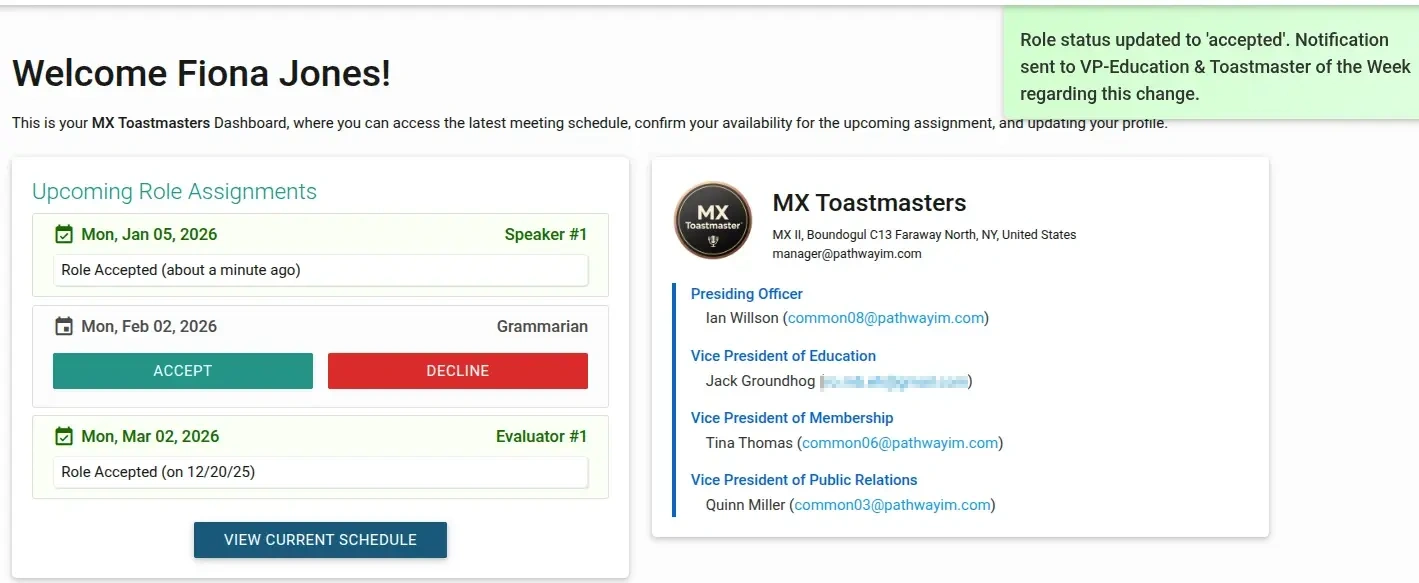
- Visit your main dashboard and locate your unconfirmed roles assignments on the
Upcoming Role Assignmentswidget
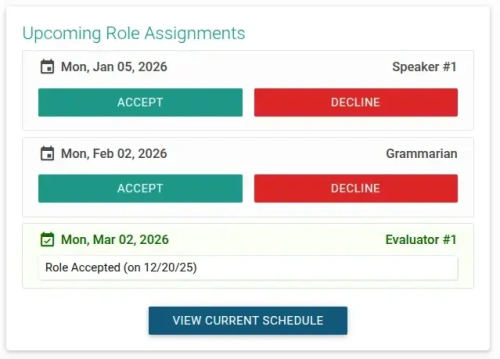
- Review the meeting date and your assigned role, then tap either
ACCEPTorDECLINEbutton, confirmation box will appear
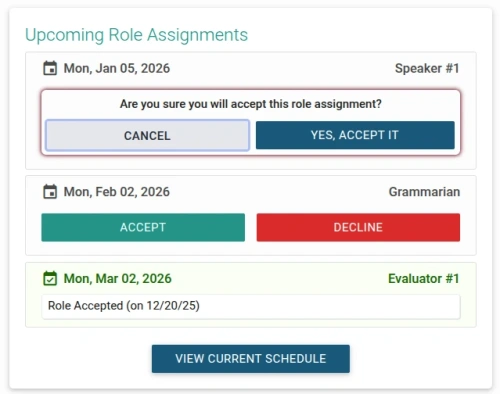
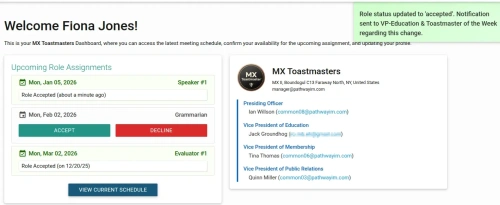
- Confirm your action, notification will appear confirming successful operation
2. Accept or Decline Roles from the Schedule Page
When you are assigned a role, your name will appear in the schedule with a clickable CONFIRM button. Promptly confirming your status is vital for meeting planning.
- Locate your name and tap the
CONFIRMbutton on the schedule.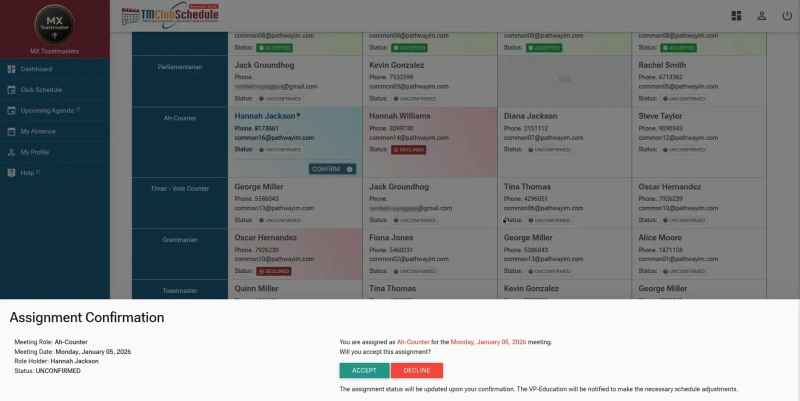
- An Assignment Confirmation window will appear, displaying the specific role and meeting date.
- Choose one of the following:
- ACCEPT: Select this to accept your assignment.
- DECLINE: Select this if you are unable to fulfill the role.

Automatic Notifications
Once you update your status, the VP-Education and Toastmaster of the Week are notified automatically. There is no need for manual follow-up emails.
If you chose to Decline it, the role immediately becomes open for other members to claim.