Upcoming Agenda Editor
The Upcoming Agenda Editor is your final checkpoint before sharing your meeting plan. It provides a dynamic preview of your schedule, ensuring that what you see on the screen accurately reflects the final output. This editor populates the meeting items with specific details for an upcoming meeting.
By pulling meeting options and structure from your template, and filling meeting entries with actual data from your schedule, the Upcoming Agenda Editor saves you time and reduces errors. You can also override options for the specific meeting if they differ from the default values set in the template, giving you flexibility and control.
Accessing Upcoming Agenda Editor
Navigate to Meeting Agenda > Upcoming Meeting.
This page lets you fill in the specific details for your next scheduled meeting, such as speech title for this specific meeting.
Meeting Options
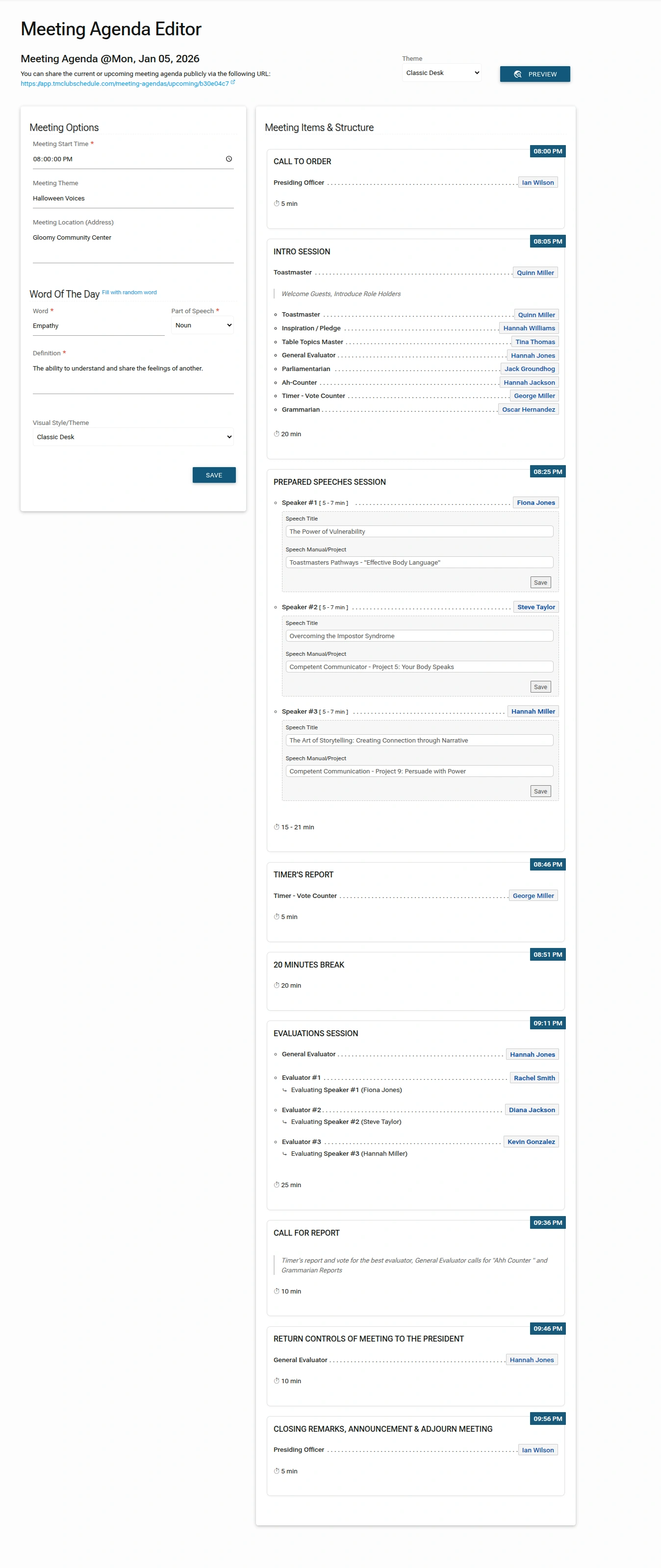
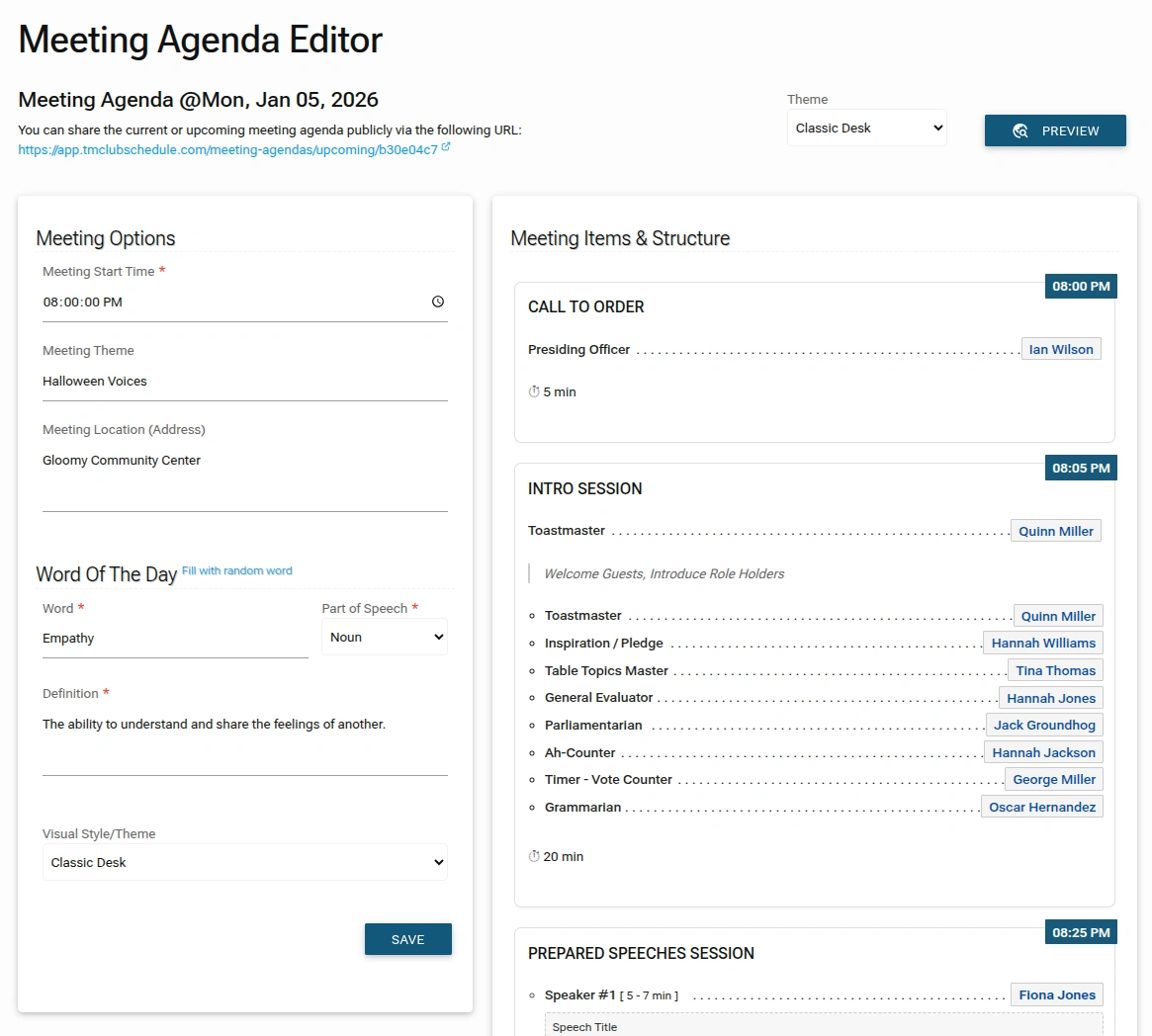
On the left, you can customize the details for this specific meeting.
- Meeting Start Time: Override the default start time if needed.
- Meeting Theme: Enter the theme for this meeting.
- Meeting Location (Address): Override the default location if needed.
- Word Of The Day:
- Word: Enter the word (e.g.,
Empathy). - Part of Speech: Select from a dropdown (e.g.,
Noun). - Definition: Enter the definition (e.g., "The ability to understand and share the feelings of another.").
- Word: Enter the word (e.g.,
- Visual Style/Theme: Choose from a dropdown of pre-designed visual themes (e.g.,
Classic Desk,Glastastic,Warm Office) to change the look of the final agenda.
Meeting Items & Structure
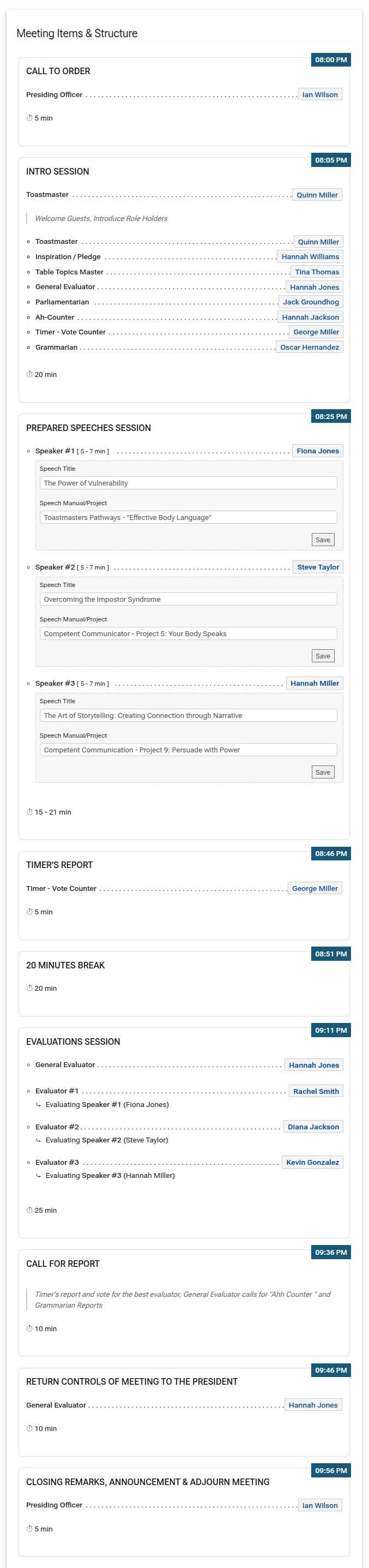
The right side displays the agenda structure, populated with data from your current schedule.
- Automatic Population: Role-based items (like "Presiding Officer" for "Call to Order") are automatically filled with the names of the members assigned to those roles.
- Speaker Details: For the "Prepared Speeches Session," you can enter the Speech Title and Speech Manual/Project for each speaker.
- Evaluator Assignments: The "Evaluations Session" automatically links each Evaluator to the Speaker they are evaluating.
- Preview: Click the
PREVIEWbutton to see what the final agenda will look like before saving.
Saving the Agenda
Click the SAVE button to finalize the agenda for the upcoming meeting. Once saved, it becomes the official agenda for that meeting.
Synchronizing Current Meeting Agenda with the Structure Template
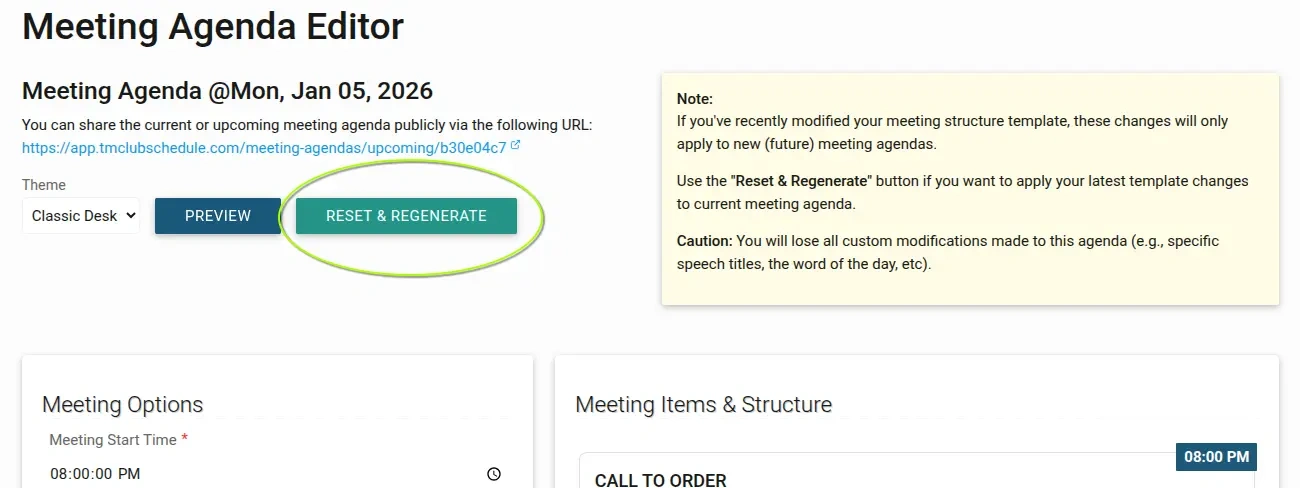
If you've recently modified your meeting structure template, these changes will only apply to new (future) meeting agendas.
Use the Reset & Regenerate button if you want to apply your latest template changes to current meeting agenda.
This will re-synchronize your current agenda with the newly updated template.
Caution
By using the Reset & Regenerate button, you will lose all custom modifications made to this agenda (e.g., specific speech titles, the word of the day, etc).
It didn't have any effect on the master schedule.
Final Agenda Output
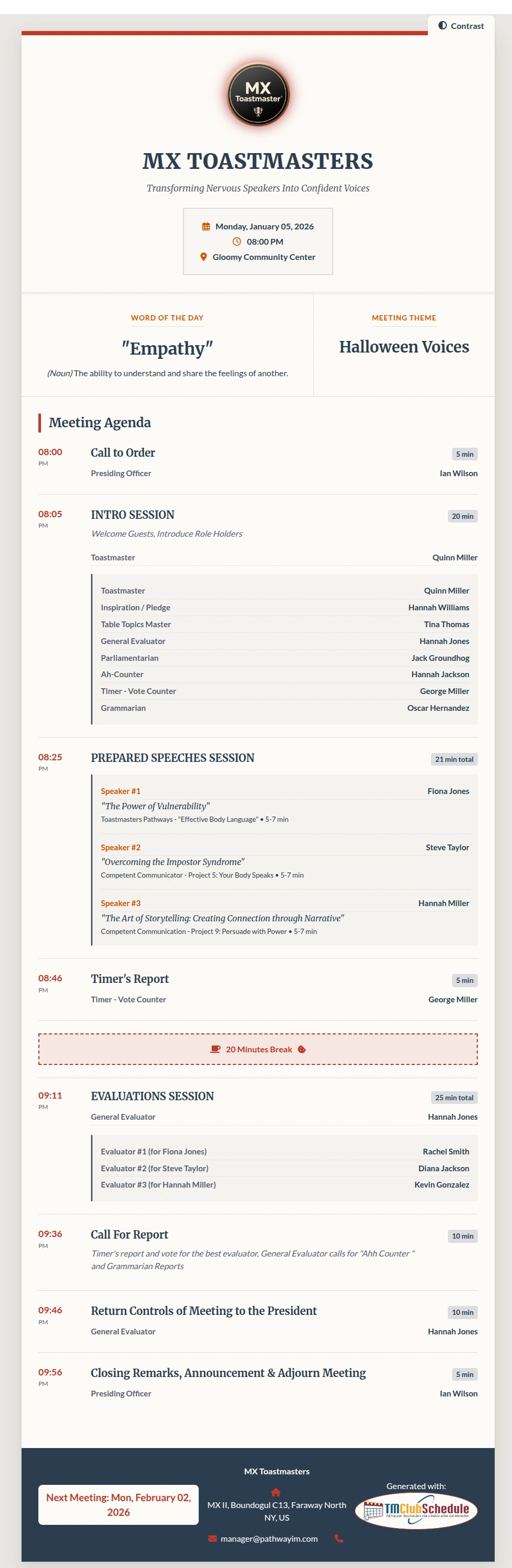
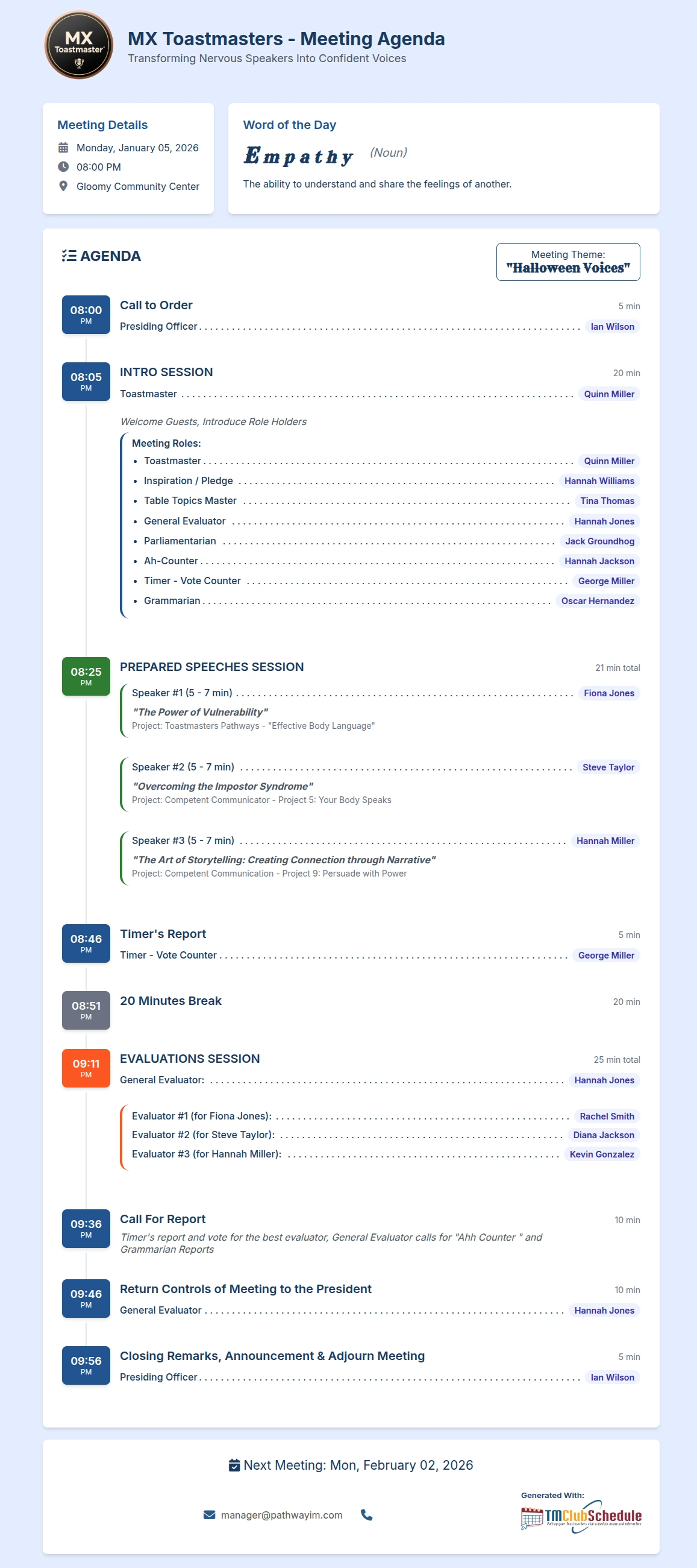
This is the beautifully formatted, public-facing version of your agenda, designed to be shared with members and guests.

Key Features
- Professional Layout: Clean, modern design with clear sections and timings.
- Branding: Displays your club's logo, name, and slogan at the top.
- Meeting Details Box: Clearly shows the date, time, and location.
- Themed Sections: Highlights the "Word of the Day" and "Meeting Theme" in dedicated boxes.
- Timeline View: Uses a vertical timeline with colored time blocks to show the flow of the meeting.
- Detailed Breakdown: Each session (Intro, Speeches, Evaluations) is clearly labeled with its total duration.
- Role & Speaker Information: Lists all role holders and speakers, including their speech titles and projects.
- Footer Information: Includes contact details, the date of the next meeting.
- Viewing and Sharing: Public URL of the meeting available to be share for public viewer
Best Practices
- Build a Robust Template: Spend time creating a detailed, flexible template. This saves you immense time in the future.
- Be Consistent: Use the same structure and terminology for your agenda items to make them familiar to your members.
- Update Regularly: Always update the "Upcoming Meeting" editor with the correct theme, word of the day, and speaker details before the meeting.
- Leverage Themes: Use different visual themes to match your meeting's mood or season (e.g., a festive theme for a holiday meeting).
- Share Widely: Distribute the final agenda link to all members and guests well in advance to ensure everyone is prepared.
By mastering the Meeting Agenda system, you can create professional, informative, and engaging agendas that enhance the experience for everyone in your club, from new members to seasoned speakers.