Managing Your Absences
The My Absence section allows you to record your unavailability so the system can automatically exclude you from being scheduled for roles during those times.
Viewing Your Absence Records
Navigate to "My Absence" on the sidebar.
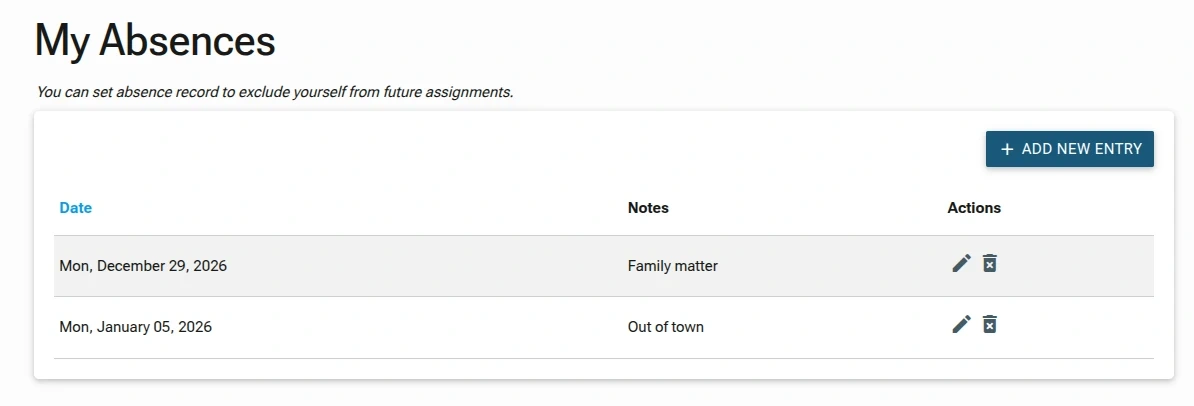
- Absence List: All your recorded absences are displayed in a table format showing the Date and any personal Notes you included.
- Actions: Next to each entry, you will find icons to Edit (
pencil) or Delete (trash can) the record.
Adding a New Absence
To log a new period of unavailability, click the + ADD NEW ENTRY button on the main absences page.
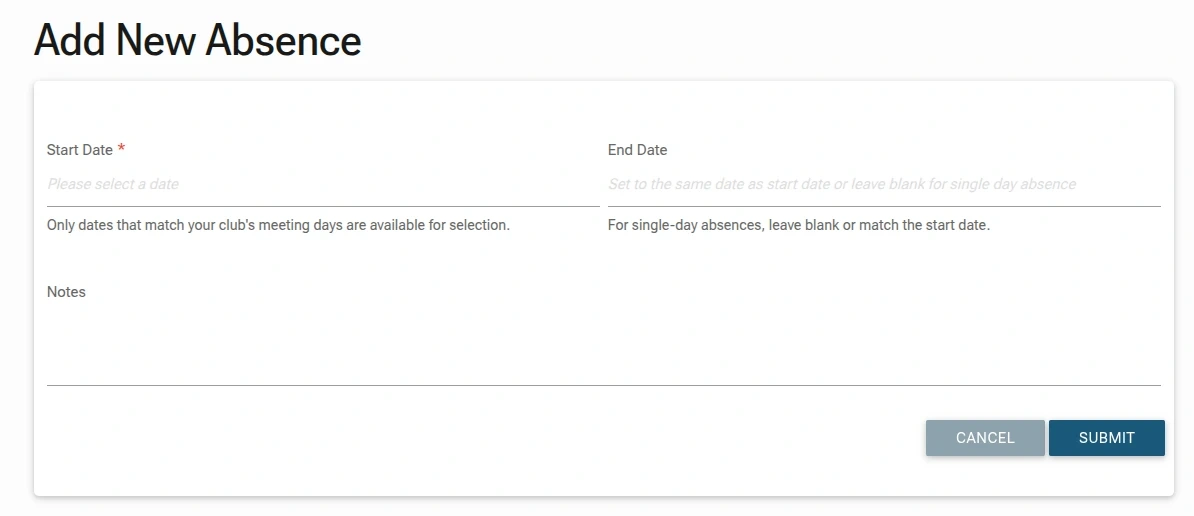
- Start Date: Select the date your absence begins. Note that only dates matching your club's official meeting days are available for selection.
- End Date: For absences spanning multiple meetings, select an end date. For a single-day absence, you may leave this field blank or set it to match the start date.
- Notes: You can optionally provide a brief reason for your absence (e.g., "Family matter" or "Out of town").
- Submission: Click SUBMIT to save the record.
Editing or Deleting an Absence
If your plans change, you can update your existing records from the main list.
- Editing Notes: Clicking the edit icon allows you to update the Notes for a specific entry.
- Correcting Dates: The Date field is not editable once a record is created. If you selected the wrong date, you must delete the existing entry using the trash can icon and create a new one with the correct date.
- Submission: After updating your notes, click SUBMIT to save the changes.