Resetting Your Password
If you have forgotten your credentials or need to update your security, you can initiate a password reset directly from the sign-in screen.
Step 1: Initiating the Request
On the main Sign In page, click the Reset Here link next to "Forgot Your Password?" or visit this URL: https://app.tmclubschedule.com/recover

- Enter Your Email: Type the email address associated with your club account into the Your email address field.
- Security Verification: To verify your request, you must complete the security check by selecting the correct sequence of arrow directions from the dropdown menu that matches the icons shown (e.g., UP - RIGHT - UP - DOWN - UP).
- Submission: Click the SUBMIT button to proceed.
Step 2: Receiving the Recovery Link
After submitting, the system will display a notification confirming that the password-reset instructions have been sent to your email.

Look for an email with the subject "TMClubSchedule - Password Reset Request".
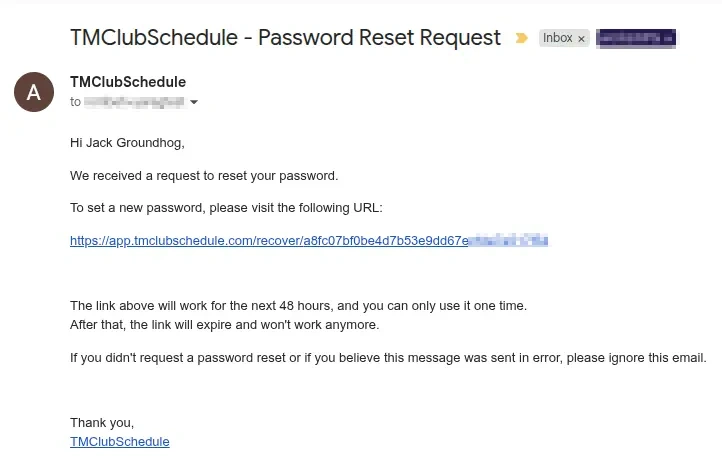
Open the email and click the unique recovery URL provided.
Troubleshooting: If you do not see the email within a few minutes, check your spam or junk folder.
Link Expiration: The recovery link is valid for 48 hours and can only be used one time.
Step 3: Updating Your Password
Clicking the email link will bring you to the Password Reset page.

Enter your desired password in the New Password field and type it again in the Confirm New Password field to ensure they match, then Click the CONFIRM & SAVE NEW PASSWORD button to finalize the update.
Step 4: Success and Sign In
Upon a successful update, you will be redirected back to the Sign In page with a green banner stating, "Your password has been updated". You will also receiv an email confirming that your password has been updated.


You can now enter your email and your new password to access your dashboard.