Club Profile
As a Club Administrator, keeping your Club Profile up to date ensures that your meeting agendas, public pages, and automated communications display the correct information to your members and the public.
Updating Your Club Profile
To access this section, navigate to Club Settings > Club Profile, or locate the Club Profile link from the Quick Access panel from the dashboard.
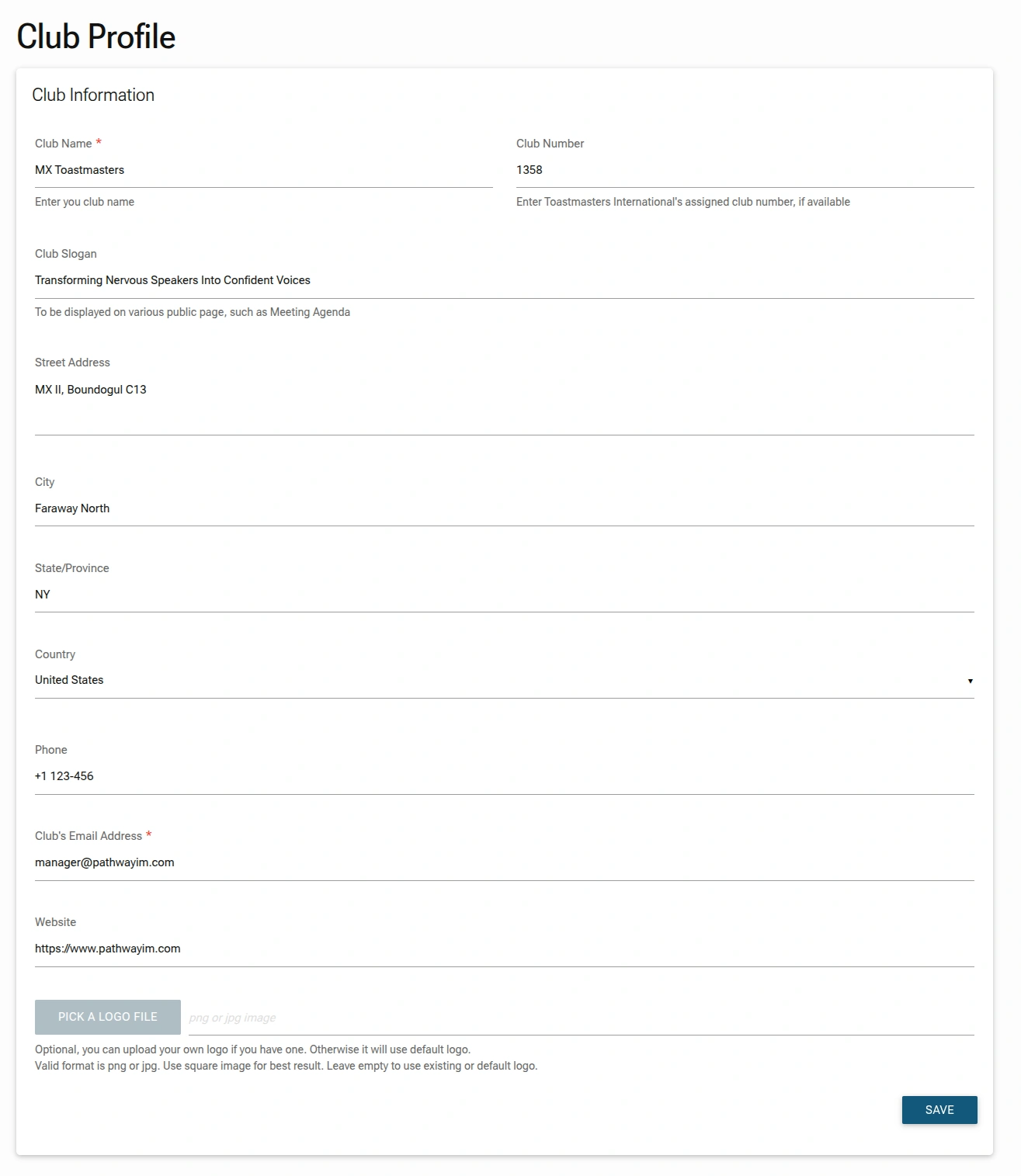
1. Basic Club Information
- Club Name: Ensure the official name of your Toastmasters club is correct. This is a required field.
- Club Number: Enter your Toastmasters International assigned club number.
- Club Slogan: Add a tagline or mission statement. This slogan appears on various public pages and your printed Meeting Agendas.
2. Location and Contact Details
- Physical Address: Update the
Street Address,City, andState/Provincewhere your club meets. - Phone: Provide a primary contact number for club inquiries.
- Club's Email Address: This is a required field used for official club communications.
- Website: Enter your club’s official website or social media landing page.
3. Branding & Visuals
- Club Logo: You can personalize your portal by uploading a custom logo.
- Click
PICK A LOGO FILEto upload a.pngor.jpgimage. - Tip: Use a square image for the best visual result. If left empty, the system will use the default TMClubSchedule logo.
4. Saving Changes
- After making updates, scroll to the bottom of the page and click the
SAVEbutton. - Confirmation: A success message will appear once your changes have been successfully recorded.
Administrator Tip
This page is crucial for maintaining accurate and up-to-date club information. Keeping it current ensures smooth operations, clear communication, and a professional representation of your club to both members and visitors.
Information updated here, such as the Club Name and Slogan, dynamically updates the header of your Meeting Agenda. Double-check these fields before printing your next meeting's materials!