Schedule & Meeting Options
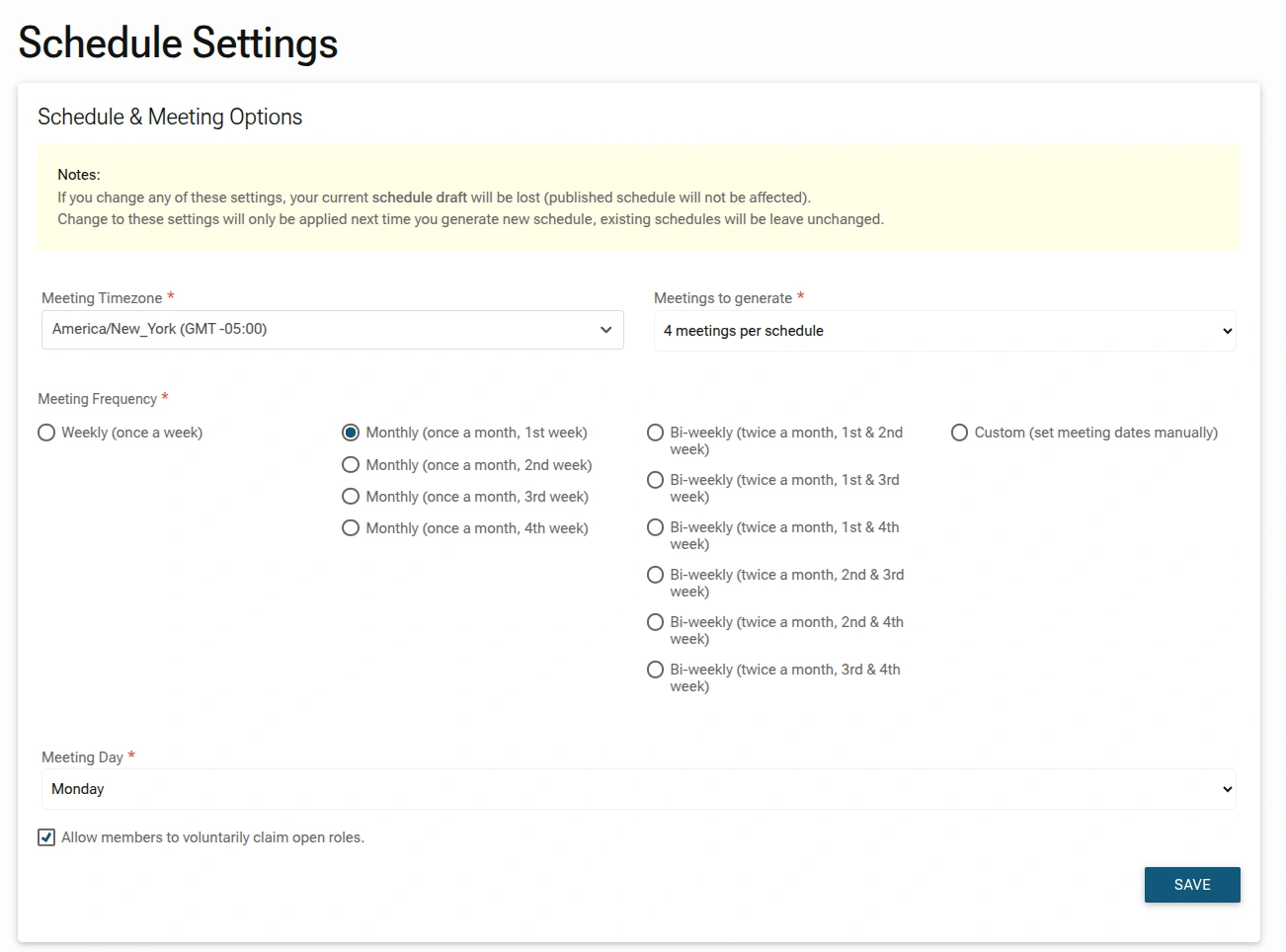
To ensure that the automated schedules generated by TMClubSchedule's schedule generator are precise and tailored to your club's meeting pattern, it's essential to configure the meeting patterns and rules within the Schedule Settings menu.
These settings allows you to define the core parameters that govern the generation of your club's meeting schedule, serving as the foundation for all future schedules created by the system.
Schedule & Meeting Options
To access these settings, navigate to the sidebar menu and select Schedule Settings > Schedule Options.
CAUTION - Impact on Drafts:
If you change these settings, existing schedule draft (if you saved one) will be discarded.
Published schedules will remain unaffected. Changes to Schedule Settings will only apply to new schedules generated after the update.
1. Basic Meeting Configuration
- Meeting Timezone: Select the correct local time zone for your club meetings from the dropdown menu.
- Meetings to Generate: Choose how many meetings you want the system to build at once (e.g., 4 meetings per schedule).
- Meeting Day: Use the dropdown to select the day of the week your club meets (e.g., Monday).
- Allow members to voluntarily claim open roles: Check this box if you want members to be able to sign up for unfilled roles on their own dashboard.
2. Defining Meeting Frequency
Select the radio button that matches your club's regular meeting rhythm:
- Weekly: Meets once every week.
- Monthly: Meets once a month (you must specify which week: 1st, 2nd, 3rd, or 4th).
- Bi-weekly: Meets twice a month. You can select specific combinations (e.g., 1st & 3rd week, or 2nd & 4th week).
- Custom: Allows you to set meeting dates manually if your club does not follow a fixed pattern.
Administrator Tip:
After saving these settings, your next step should be to visit the Holidays & Contests section to black out dates where regular meetings won't occur, ensuring the generator doesn't schedule roles for those days.