Account Activation & Sign In
Once you have submitted the registration form, please check the inbox of the email address you provided. An activation email from TMClubSchedule should arrive shortly.
Step 1: Activate Your Account
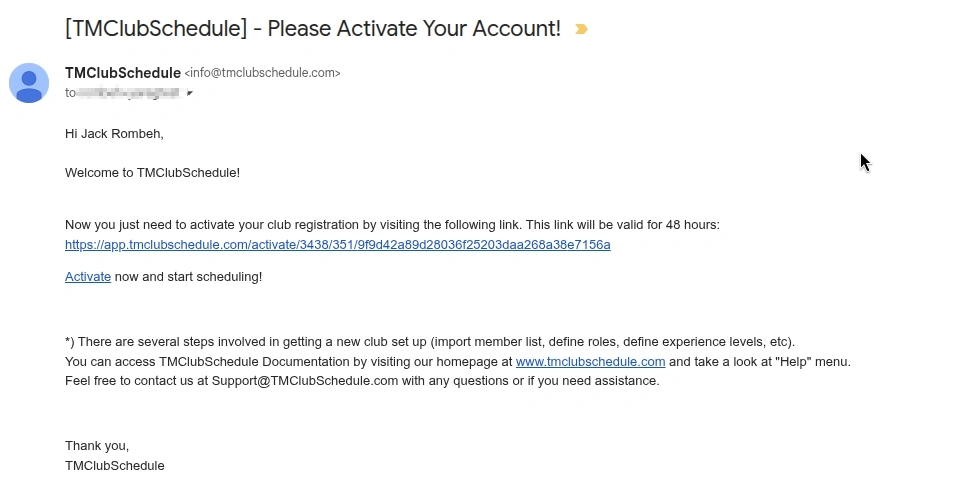
- Activation Link: Click the unique URL or the
Activatelink provided in the email to verify your account. - Time Sensitivity: This activation link is only valid for
48 hours. If it expires, you may need to contact support.
Note
If you don't see it in your inbox, please check your spam/junk folder.
Step 2: Accessing the Sign In Page
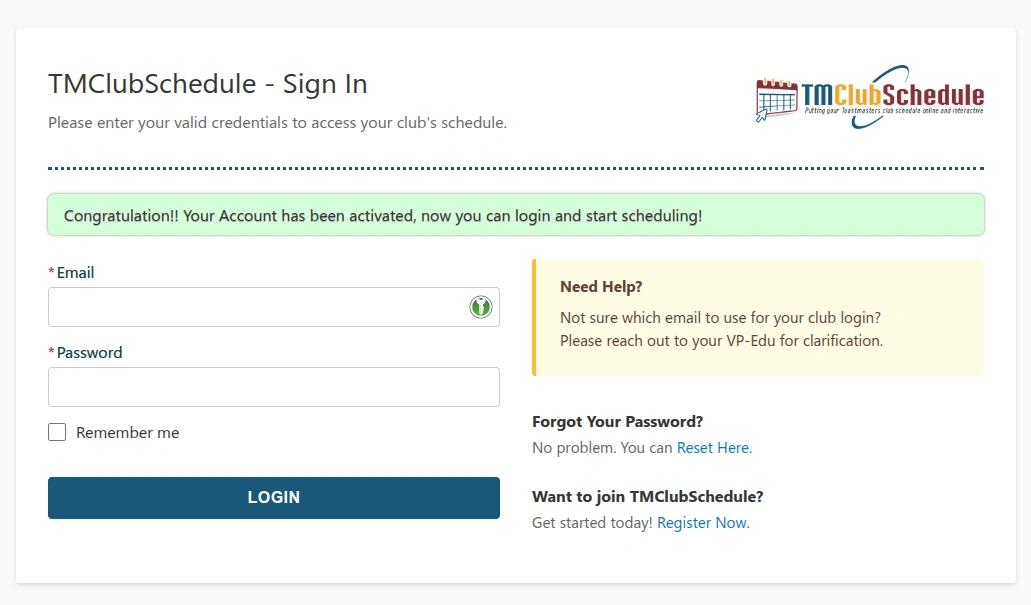
Once you click the activation link, you will be redirected to the Sign In page, displaying a confirmation message: "Congratulation!! Your Account has been activated".
Step 3: Logging In
Enter your credentials to access the club dashboard:
- Email: Use the email address associated with your VP-Education or Administrator account.
- Password: Enter the password you created during the registration process.
- Remember Me: Check this box if you want the browser to stay logged in for future sessions on this device.
- Login: Click
LOGINbutton to enter the VP-Education Dashboard.
Next time you want to login, you can directly access the login page at this URL: https://app.tmclubschedule.com/login
Troubleshooting & Support
- Forgotten Password: If you cannot remember your password, click
Reset Herenext to the "Forgot Your Password?" prompt or visit this URL: https://app.tmclubschedule.com/recover - Unsure which email to use? If you are a member and don't know your login email, reach out to your club's VP-Education for clarification.
- Direct Help: For technical assistance, you can email support@tmclubschedule.com.