Schedule Management
The Schedule Manager is your primary tool for fine-tuning the results of the Schedule Generator. While the system handles the heavy lifting of initial assignments, the editor allows you to handle the nuances of club life while leveraging member self-service.
It allows you, as the Club Administrator or VP-Education, to view, manage, and finalize your club’s meeting schedule. This powerful tool provides a clear, grid-based interface for assigning roles, tracking member confirmations, and ensuring your meetings are fully staffed.
Managing & Editing Current Schedule
To view or modify your current master schedule, navigate to Schedule Manager in the left sidebar. This view displays all upcoming meetings, whether they are in Draft or Published status.
1. Master Schedule Viewer & Editor
The page displays a comprehensive, interactive grid that maps out all meeting dates against all required roles.

- Schedule Header: Displays the date range of the current schedule (e.g., "January 05, 2026 - April 06, 2026").
- Public Sharing Link: A URL is provided to share the latest published schedule with members or visitors.
- Interactive Grid: The core of the page is a large table where:
- Rows represent each meeting role (e.g., Presiding Officer, Speaker #1, Evaluator #3).
- Columns represent each scheduled meeting date.
- Each cell contains the name of the assigned member, their contact information, and their assignment status.
- Status Indicators:
- Green
ACCEPTED: The member has confirmed their role. - Red
DECLINED: The member has declined the role. - Grey
UNCONFIRMED: The member has been assigned but has not yet responded.
- Green
- Edit Functionality: Click on any member's name to open the "Update Assignment" modal and make changes.
- Save as PDF: A button at the bottom allows you to download a printable version of the schedule.
2. Updating an Assignment
Within the editor, you can manually override any assignment:
- Click on the name of the member currently assigned to the role.
- An "Update Assignment" modal will pop up, showing details like the Role, Meeting Date, Current Holder, and Status.
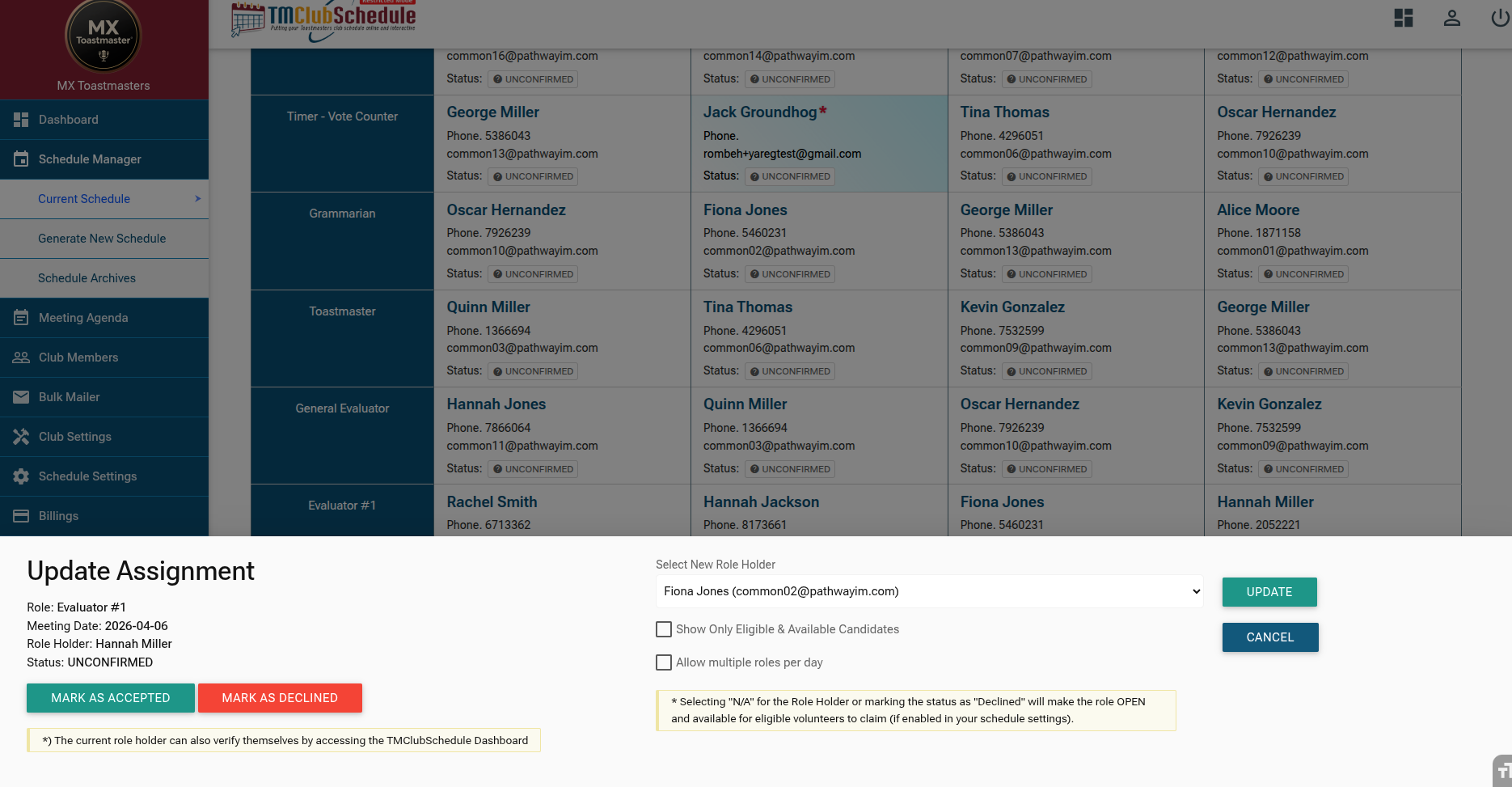
- Use the dropdown menu labeled "Select New Role Holder" to choose a different member from the list.
- Optional Filters:
- Show Only Eligible & Available Candidates: Check this box to filter the list to show only members who are eligible for the role (based on Membership Level) and do not have an absence on that date.
- Allow multiple roles per day: Check this if you want to assign one member to more than one role on the same day (use with caution).
- Marking as Accepted/Declined: You can also use the green
MARK AS ACCEPTEDor redMARK AS DECLINEDbuttons to manually update the status. - Click the green UPDATE button to save your changes.
- A confirmation message ("Assignment status has been updated.") will appear.
- Visibility: Any changes you save while a schedule is "Published" are immediately reflected on the member-facing dashboards.
3. Handling Declined Roles & Making a Role Open
When a member declines an assignment:
- The role status immediately reverts to OPEN.
- The role becomes available for any other eligible member to volunteer for.
- The VP-Edu can step in to manually assign a replacement if the role remains unclaimed as the meeting date approaches:
- In the "Update Assignment" modal, select
N/Afrom the "Select New Role Holder" dropdown. - Or, click the red
MARK AS DECLINEDbutton.
- In the "Update Assignment" modal, select
4. Empowering Member Self-Service
The core philosophy of TMClubSchedule is to automate tedious administrative tasks by involving members directly. The system is designed to be collaborative, empowering members to manage their own participation. Instead of the VP-Edu chasing people for confirmations, members use their own Member Dashboard to do:
- Accept/Decline Assigned Role: Members can log into their personal Club Members Dashboard to view their assignments and click
AcceptorDeclinefor any unconfirmed role. This updates the status in real-time on the Schedule Manager. - Volunteer for Roles: Members can "hunt" for OPEN roles and voluntarily claim them if they are eligible directly from their dashboard.
- Automated Notifications: The moment a member updates their status (Accept/Decline/Volunteer), the VP-Edu and the Toastmaster of the Week receive an instant notification, keeping leadership informed without manual check-ins.
Why Self-Service Matters
Efficiency through Involvement: The primary "selling point" of TMClubSchedule platform is shifting the burden of scheduling from a single officer to the entire club. By allowing members to self-manage their roles and availability, the VP-Education saves hours of "tedious" follow-up work, making club management significantly easier.
Best Practices
- Review Regularly: Check the schedule frequently to see which roles are still
UNCONFIRMEDand follow up with those members. - Encourage Self-Service: Remind your members to check their dashboards and confirm their roles. This reduces your workload and increases member engagement.
- Use the Filter: When updating assignments, use the "Show Only Eligible & Available Candidates" filter to quickly find suitable replacements.
- Publish Promptly: Once all roles are filled and confirmed, publish the schedule so everyone has access to the final version.
- Leverage Open Roles: Don't hesitate to mark roles as
OPENif a member declines. This encourages a culture of volunteering, healthy competition and shared responsibility.
By using the Schedule Manager effectively, you transform the often tedious task of scheduling into a streamlined, collaborative process. This leads to better-prepared meetings, higher member satisfaction, and a stronger, more engaged Toastmasters club.